
Your smart home devices work hard to keep your home secure and efficient, but regular maintenance is key to ensuring they stay reliable and safe. Without proper care, issues like dust buildup, outdated firmware, or weak network security can lead to costly repairs or vulnerabilities. Here’s how to keep your system running smoothly:
- Weekly Tasks: Clean camera lenses, check battery levels, and test motion sensors.
- Monthly Tasks: Update apps, review security settings, and run diagnostics.
- Semi-Annual Tasks: Inspect sensors, recalibrate thermostats, and clean outdoor devices.
- Network Security: Test Wi-Fi strength, update router firmware, and change passwords regularly.
- Professional Help: Call in experts for persistent issues, hardware upgrades, or advanced security assessments.
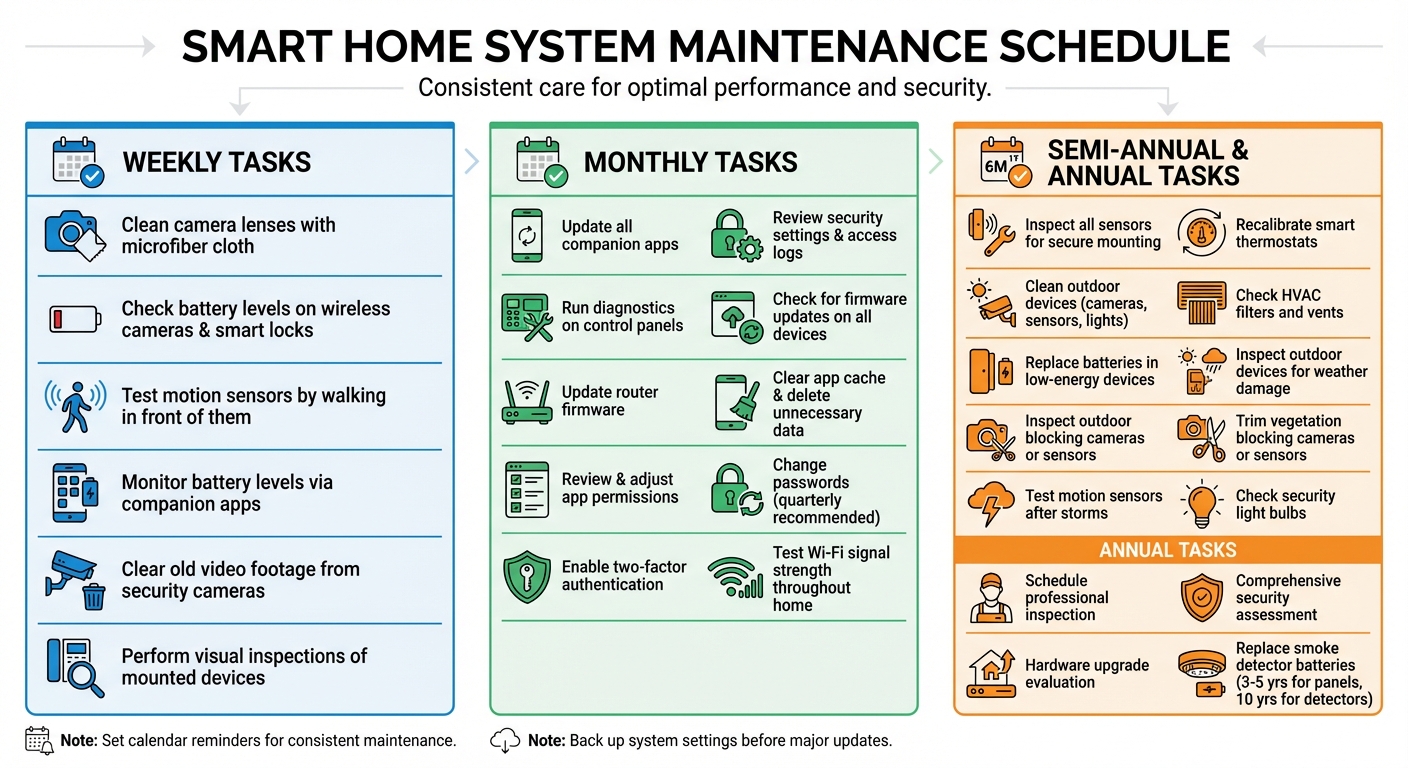
Smart Home Maintenance Schedule: Weekly, Monthly, and Semi-Annual Tasks
Preparing for Maintenance
Before diving into maintenance tasks, make sure you have all the tools you need. A little preparation goes a long way in avoiding hiccups during the process.
Tools You’ll Need
You don’t need a fancy toolbox – just a few everyday items will do the trick. Here’s what to have on hand:
- Microfiber cloth: Perfect for cleaning lenses and control panels without causing scratches.
- Screwdriver set: Useful for accessing batteries or tightening hardware.
- Spare batteries: Essential for wireless devices like cameras, smart locks, smoke detectors, and door sensors.
- Smartphone or tablet: Handy for managing apps, updates, and device settings.
- Step ladder: Helps you reach high-mounted devices.
- Small reset tool or paper clip: Useful for manual resets when needed [1][3][7].
"To avoid damage, be sure to spray cleanser on a cloth, not directly on your camera lens. And avoid using paper towels. They may scratch the lens." – Alina Bradford, Safety and Security Expert [3]
Once your tools are ready, the next step is to establish a consistent maintenance schedule.
Setting a Maintenance Schedule
Break your maintenance tasks into manageable chunks: weekly, monthly, and semi-annual routines. For example:
- Weekly: Focus on high-energy devices like wireless cameras and smart locks. These tend to drain batteries faster and need regular attention.
- Monthly: Schedule digital tasks like updating apps and running diagnostics on control panels. Set a recurring reminder on your calendar – choosing a consistent day, like the first Saturday of each month, can help you stay on track [6].
- Semi-Annual: Low-energy devices, such as door and window sensors, usually require less frequent checks – every six months is enough. Seasonal transitions (e.g., winter to spring or summer to fall) are the perfect time for recalibrating smart thermostats and performing HVAC system checks [6][8].
Once your schedule is in place, it’s time to safeguard your system settings with a backup.
Backing Up Your System Settings
Before making any changes, always back up your system configurations [2]. This step is crucial for avoiding headaches if something goes wrong. Here’s how to do it:
- Open the app or web interface for each device.
- Look for options labeled "Backup", "Export Configuration", or "Save Settings."
- Perform manual backups, especially for devices that don’t auto-save settings before updates.
Store these backup files securely in encrypted cloud storage or on an external drive to keep sensitive data safe. To stay organized, document the date, time, and details of each backup, along with notes about device locations or custom settings [9]. This record will be a lifesaver if you need to restore settings later.
"Before making major changes (like firmware updates), back up device configurations if possible. This allows for quick recovery if something goes wrong." – Bitdefender [2]
Network and Connectivity Checks
A reliable network is the backbone of any smart home. Here, we’ll guide you through testing Wi-Fi signal strength, inspecting cables, and ensuring your router’s firmware is up to date.
Testing Wi‑Fi Signal Strength
Start by evaluating how well your Wi-Fi signal reaches every part of your home. Network scanning apps or your router’s companion app can help you identify connected devices and pinpoint areas with weak signals. Most routers also allow you to access their interface to monitor signal strength and device connections.
Physical obstructions can play a big role in signal issues. Large metal appliances, metal-lined lampshades, or even a new furniture arrangement can interfere with Wi-Fi performance. If you’re noticing error messages or sluggish connections, these could be signs of poor signal strength.
Router placement is key to solid coverage. Position your router in a central, open location rather than hiding it in a cabinet or corner. This small adjustment can significantly improve signal distribution. Also, consider whether your internet plan offers enough bandwidth for activities like streaming, gaming, or running multiple smart devices simultaneously.
"Your internet router is the gateway to everything on your network, from your smartphones and PCs to your smart home devices." – Ben Lovejoy, How‑To Geek [10]
Once you’ve assessed signal strength, it’s time to examine the physical connections.
Checking Connections and Cables
Physical connections often fail more frequently than you’d expect. Inspect all cords and Ethernet cables to ensure they’re securely plugged in and free of dust or damage. If you’re troubleshooting power issues, test the outlet by plugging in another device. Additionally, make sure power strips haven’t been accidentally turned off by furniture or foot traffic.
Check your router’s status lights – red or blinking indicators usually signal hardware problems or outages. Dust buildup around ports and vents can also cause electrical issues, so cleaning these areas regularly is a good habit.
Don’t overlook sensors in your smart home setup. Window, door, and motion sensors can loosen over time due to humidity, pets, or accidental bumps. Inspect them to ensure they’re securely attached. If you’re still experiencing connectivity problems, try a power cycle: unplug your router for five minutes and then plug it back in to refresh the connection.
After addressing physical connections, focus on securing your network by updating your router’s firmware.
Updating Router Firmware
An outdated router can put your entire network at risk. Manufacturers release firmware updates to fix security flaws that hackers might exploit to access your devices, spy through cameras, or steal data. These updates are critical for keeping your network secure.
Log in to your router’s admin interface or companion app and look for options like "Firmware Update" or "Software Update." If your router supports automatic updates, enable them to ensure you’re always protected. If not, set a monthly reminder to check manually. Before performing a major update, back up your router’s settings to avoid losing custom configurations.
If you rent your router from your Internet Service Provider (ISP), check whether they handle updates remotely. If the hardware is outdated, it may be time for a replacement. Also, change the default administrative username and password to prevent unauthorized access. Older routers that no longer receive updates should be replaced, as they pose a security risk.
"Consider your Wi‑Fi router the ‘front door’ to your smart home. Like any front door, it should be solid and equipped with strong locks, in case cybercriminals come knocking." – Norton [5]
Device Updates and Software Maintenance
After conducting network security checks, the next step is ensuring your device firmware is up to date. Firmware updates are essential for both security and performance. When firmware is outdated, devices like cameras, locks, and thermostats become vulnerable to attacks. A striking example of this was the 2016 Mirai botnet attack, which exploited weaknesses in hundreds of thousands of IoT devices to launch massive cyberattacks, temporarily disabling major platforms like Spotify and Netflix [5].
Installing Firmware and Software Updates
For most smart devices, updates are managed through their companion apps, such as those for lighting systems or thermostats. Open each app, go to the settings menu, and look for options like "Firmware Update" or "Software Update." Focus first on high-risk devices – routers, security cameras, smart locks, and any device with microphones or video feeds – and apply updates as soon as they’re available [2].
For devices that don’t support automatic updates, manual intervention is necessary. If no update appears in the app, head to the manufacturer’s official support page to check for a manual firmware download [11][5]. Before updating, back up your settings if needed, and ensure the device stays powered throughout the process to avoid potential damage [1].
"A simple monthly security audit can go a long way toward keeping your devices and your data safe." – Vlad Constantinescu, Security Analyst, Bitdefender [2]
Once updates are complete, take your security a step further by enabling automatic updates wherever possible.
Enabling Automatic Updates
Automatic updates can save you time and ensure quicker protection against new vulnerabilities. Within each device’s companion app, toggle on the automatic update option if it’s available. Don’t forget to check your smartphone’s app store settings – both iOS and Android allow you to enable automatic updates for all installed apps, keeping your smart home controllers up to date with the latest security patches [3].
For routers, access the web interface and confirm that firmware updates are set to "Automatic." If this feature isn’t available, set a reminder to perform manual checks monthly [10]. Regular audits like these are a simple way to maintain security [2][3]. By automating updates, you can spend less time worrying about patches and more time enjoying your smart home.
"If both apps and firmware are set to update automatically, then it’s something you never need to think about again." – Ben Lovejoy, Tech Writer, How-To Geek [10]
Managing App Performance
After updating software, it’s important to ensure that companion apps continue to run smoothly. Over time, apps can become sluggish or glitchy. Start by clearing the app cache or deleting unnecessary data. For apps that manage video or logs, like security camera controllers, make it a habit to clear old footage weekly [3]. If a device becomes unresponsive, check the app’s "Information", "Support", or "Troubleshooting" sections for error logs or firmware update notices [1].
Take a moment each month to review app permissions and disable access to features you no longer use. If problems persist, uninstall and reinstall the app – this often resolves lingering bugs and gives you a clean slate [3]. Keeping apps running efficiently helps ensure the reliability of your entire smart home system.
Hardware Inspection and Cleaning
After updating your software, it’s time to focus on the physical upkeep of your devices. Dust, moisture, and loose connections can slowly chip away at their performance, so regular maintenance is a must.
Cleaning Devices and Sensors
Dust and debris can mess with how your devices function, especially when it comes to airflow and sensor accuracy. Use a dry microfiber cloth to wipe down control panels, cameras, and sensors every week. For camera lenses, spray a bit of glass cleaner onto the cloth – never directly onto the device – to avoid liquid damage [3][6].
If you have wall-mounted sensors, make sure they’re securely attached. Adhesives can weaken over time, so give each sensor a gentle press every six months to ensure it’s still firmly in place [3][6]. Also, keep your equipment in dry spaces to minimize the risk of electrical issues [1].
Once you’re done cleaning, take a moment to check the power sources and replace or recharge batteries as needed.
Testing and Replacing Batteries
For smart locks and wireless cameras, use their companion apps to monitor battery levels weekly. For low-energy devices like smoke detectors and door sensors, inspect them every six months. Remember, smoke detectors should be replaced every 10 years, and security panel batteries need swapping out every 3–5 years [3][6][7].
Keep spare batteries handy, and stick to the manufacturer’s charging guidelines. Some devices shouldn’t stay plugged in after they’re fully charged, as this can wear down the battery over time [1].
Once you’ve tackled the batteries, it’s time to check for signs of physical wear and tear.
Checking for Physical Damage
Every two weeks, inspect all mounted devices for issues like blank screens, unresponsive buttons, or loose brackets. Tighten screws on security chains, door hinges, and camera mounts as needed. If there’s been a storm, check outdoor devices for damage from wind or rain, and trim back any plants that might block sensors or cameras [3][6][7].
If a device keeps showing "low battery" warnings even after replacing the batteries, or if camera feeds frequently disconnect, it might be time to call in a professional for repairs or consider replacing the hardware [1][7].
sbb-itb-c5b321b
Security and Sensor Testing
Once you’ve addressed any physical wear and tear, it’s time to ensure your security devices are fully operational. A camera that doesn’t record or a sensor that fails to detect motion provides no protection. This step is all about verifying that your security components are doing their job. Did you know that in the U.S., a burglary happens every 15 seconds? That alone highlights the importance of reliable security systems [7].
Testing Cameras and Motion Sensors
Perimeter devices like cameras and motion sensors can easily get misaligned due to wind, pets, or even kids. Regular checks are essential. Walk in front of each motion sensor to confirm it triggers a notification on your smartphone app. If your system has a control panel, use its test mode or self-diagnostic feature at least once a month to ensure all components are properly communicating with the hub.
For cameras, check the video feed for clear images. If you notice any obstructions – like growing bushes or other changes in the environment – adjust the activity zones in your app. As SafeWise aptly puts it, "Smudgy footage is useless footage." Don’t forget to monitor battery levels weekly for wireless cameras and smart locks. Keeping sensors in top shape is key to maintaining the overall security of your system.
Updating Passwords and Reviewing Logs
Default passwords are a major security risk. Replace them with strong, unique passwords that are at least 12 characters long, combining uppercase and lowercase letters, numbers, and symbols. For an added layer of protection, enable two-factor authentication (2FA) on all security apps. A password manager can help you keep track of these complex credentials.
Make it a habit to review access logs monthly. Look for anything unusual, such as repeated failed login attempts, logins at odd hours, or unfamiliar devices on your network. Push notifications can be enabled to alert you immediately to any suspicious activity.
"A simple monthly security audit can go a long way toward keeping your devices and your data safe." – Vlad Constantinescu, Security Analyst, Bitdefender [2]
Cleaning Security Device Lenses
Dirty camera lenses can compromise the quality of your video feed. Clean them weekly using a microfiber cloth lightly sprayed with glass cleaner. Avoid spraying directly onto the lens, and steer clear of paper towels, which can leave scratches. If your system uses local storage, delete old footage regularly to free up space for new recordings.
Like any other maintenance task, paying consistent attention to your security devices is essential for keeping your home safe and secure.
Environmental Care for Smart Devices
Smart devices aren’t just affected by software glitches or hardware malfunctions – they’re also sensitive to environmental conditions. Factors like extreme temperatures, high humidity, dust buildup, and poor airflow can all lead to performance issues or even shorten the lifespan of your devices. Taking steps to address these environmental challenges can help keep your devices running smoothly for longer.
Protecting Cables and Ensuring Ventilation
Start by making sure all power cords are securely connected to devices and outlets. Loose connections can lead to power interruptions that are not only inconvenient but tricky to diagnose. Position power strips and surge protectors in safe spots where they won’t be accidentally bumped by furniture, kicked, or hit by a vacuum. If you’re using a power strip under a desk, ensure the power button isn’t placed where it might be toggled off by accident.
Place your devices in clean, dry areas with enough space for proper airflow. Dust buildup can trap heat, impacting performance and potentially causing overheating. Regular cleaning is key – use a cloth sprayed with cleaner (never spray directly onto the device) to wipe down surfaces and keep ventilation ports clear [3][6]. Also, check that no new furniture or appliances are blocking airflow around your devices [1].
For devices installed outdoors, additional precautions are necessary.
Checking Outdoor Devices
Outdoor smart devices like cameras, sensors, and lights face exposure to harsh weather conditions, including rain, snow, and fluctuating temperatures. Inspect these devices every six months for signs of weather damage or displacement [3][6]. High humidity, for example, can loosen sensors from walls or doorframes, so it’s important to ensure they’re still securely mounted [3][6].
Trim back trees and bushes that might obstruct camera views or sensor paths – overgrown vegetation can lead to false alerts or create blind spots in your coverage [3][6]. Clean outdoor camera lenses using a microfiber cloth and glass cleaner, applying the cleaner to the cloth rather than directly onto the lens [3][6]. Check security lights regularly for burned-out bulbs, and test motion sensors after storms to confirm they’re still functioning properly [3][6]. If your devices rely on batteries, monitor their levels weekly to avoid unexpected outages.
Indoor systems, like HVAC-connected devices, also benefit from routine environmental care.
Maintaining HVAC Integration
For homes with a smart thermostat, the efficiency of your HVAC system plays a big role in how well the thermostat performs. Regularly check HVAC filters and vents to make sure the system isn’t being overworked due to blockages [4]. A clogged filter can throw off temperature readings and waste energy, undermining the benefits of your smart thermostat.
It’s also a good idea to compare your thermostat’s readings with a standalone thermometer. If there’s a noticeable difference, recalibrate the thermostat or check for nearby heat sources, like lamps or electronics, that might be skewing the readings. Keeping your HVAC system in good condition ensures your smart thermostat can deliver the energy efficiency and comfort it’s designed for.
When to Call a Professional
Even with diligent care for your smart home’s physical and network components, there are times when professional expertise becomes essential. Some issues simply require the knowledge and tools that only a specialist can provide.
Why Professional Maintenance Matters
Professional maintenance goes beyond basic upkeep. Experts bring specialized tools to the table, capable of detecting vulnerabilities that everyday apps might overlook – like open ports or unusual network activity [2]. They can also implement advanced security measures, such as setting up network segmentation (VLANs) to keep your IoT devices separate from sensitive personal data on your computers and phones [2][5].
"Security experts… can identify potential weaknesses, update firmware, and perform in-depth diagnostics that may not be visible during routine checks." – Vector Security Team [7]
Timing is key, especially before warranties expire. A professional evaluation can catch faulty equipment while it’s still covered [3][6]. Beyond that, they can assess whether your current system meets your evolving needs, particularly if you’ve renovated or expanded your home and may now have coverage gaps, like missing sensors in new areas.
Knowing when to call in the pros can save you time, frustration, and money.
When to Bring in the Experts
Some problems are clear indicators that it’s time to stop troubleshooting on your own and call a professional. Persistent connectivity issues, devices that stop responding, or repeated network disruptions are all signs that expert help is needed [1].
Hardwired issues or physical damage – like blank screens or buttons that don’t work – should also be addressed by a professional [1]. As Sophie Yalkezian, Contributing Writer at Angi, explains:
"If your motion sensors or cameras aren’t working… and this is a hardwired system, it’s best to call the company behind the product" [6].
Other warning signs include security concerns, such as unfamiliar devices showing up on your network or multiple failed login attempts [2]. Additionally, if your hardware is outdated and no longer supports firmware updates or frequently crashes, it’s time to consider an upgrade with professional guidance [1][3].
One Sound Choice for Expert Support

For homeowners in Northern New Jersey, One Sound Choice is a trusted provider of professional smart home services. With over 30 years of experience and more than 2,500 installations, their team, led by Ryan "The Smart Guy" Herd, offers tailored solutions and outstanding post-installation support.
Whether you’re dealing with ongoing connectivity issues, need a detailed security assessment, or want to make the most of your warranty, their expertise ensures your smart home operates flawlessly. Visit https://onesoundchoice.com to learn more about their services.
Conclusion
Keeping your smart home in top shape ensures you get the most out of your investment in comfort, security, and convenience. Regular maintenance not only keeps your devices running smoothly but also safeguards your privacy. As security analyst Vlad Constantinescu wisely notes, "A simple monthly security audit can go a long way toward keeping your devices and your data safe" [2].
This guide highlights actionable steps to maintain your system effectively. Start with weekly visual checks – like cleaning camera lenses and checking battery levels. Add monthly digital audits, where you update apps, review settings, and run diagnostics. Finally, schedule annual professional inspections to uncover and address issues that routine checks might overlook. This layered approach minimizes risks like dust buildup or outdated firmware.
Don’t forget, your router is the backbone of your smart home. Protect your network with strong encryption, unique login credentials, and device isolation. For added security, enable two-factor authentication on critical devices.
While many tasks can be handled on your own, don’t hesitate to consult professionals for more complex issues like persistent connectivity problems, potential security breaches, or outdated hardware. Their expertise and advanced tools ensure your system stays reliable and secure for years to come.
What One Sound Choice clients say
I’d (tell others) that Ryan’s very professional and very easy to work with, in terms of budgeting and listening to what you want to have done. He never pushed us toward anything we couldn’t afford or didn’t want and he got the job done on time.
– Mr. & Mrs. DeSantis (1 Sound Choice client testimonials)
The 1 Sound Choice staff was very easy to work with. Ryan, you understood our wants right from the beginning. Simplicity of installation and operation were just some of the reasons we chose 1 Sound Choice. You exceeded my expectations!
– Mr. & Mrs. Matia (1 Sound Choice client testimonials)
Very efficient and professional. Knowledgeable of equipment and products suited for your space/home. Perfectionists at their job and get the task done in promised time.
– dmhajjar (Houzz review)
FAQs
How often should I update the firmware on my smart home devices to keep them running smoothly?
Updating the firmware on your smart home devices is something you should do regularly – ideally once a month. These updates aren’t just optional; they play a key role in keeping your devices performing well, boosting security, and preventing common issues like connectivity hiccups or unresponsive gadgets.
When you keep your devices updated, they can take advantage of the latest features and stay protected against potential security risks. A simple way to stay on track is by setting a recurring reminder, so your smart home system continues to work smoothly without any interruptions.
How can I tell if my smart home system needs professional attention?
If your smart home setup is plagued by constant connectivity issues, devices that often malfunction or fail to respond, or security risks like outdated systems, it might be time to bring in a professional. Other warning signs include trouble with updates, unresolved troubleshooting attempts, or persistent error messages. These problems could point to underlying technical issues that need expert attention.
For those living in Northern New Jersey, One Sound Choice offers specialized services in designing, installing, and maintaining high-quality smart home systems. Their team ensures your system is secure, dependable, and customized to fit your household’s needs, making it easier to resolve any issues and keep your smart home functioning seamlessly.
What are the best ways to boost Wi-Fi signal strength for smart home devices?
To boost the Wi-Fi signal strength for your smart home devices, start by securing and optimizing your network. Use a strong, unique password and enable WPA2 or higher encryption for added security and improved performance. For privacy, avoid including personal details in your network name (SSID).
Place your router in a central, open spot – away from walls, large metal objects, or any electronic devices that could cause interference. Keep your router’s firmware updated to ensure it operates smoothly, and disable any unused features that might slow things down.
For more control, think about setting up a guest network to keep your smart devices separate from personal ones. You can also use a MAC address filter to allow only approved devices to connect. If you’re still dealing with weak coverage, adding a Wi-Fi extender or upgrading to a mesh network system can help ensure strong and reliable connectivity throughout your home.
Related Blog Posts
- AI-Powered Smart Security System
- How Failover Protects Smart Home Systems
- Enterprise-Grade Networking for Remote Home Control
- How Encryption Protects Family Privacy
Want help with the plan? See our smart home page.
More questions
How often should I update my smart home devices?
Check for updates every month or so. Updates fix bugs and close security holes.
One Sound Choice, 8 Tilley Ave, Pompton Plains, NJ 07444. Call or text (973) 945-5275. We work in homes across Morris, Passaic, Bergen, Essex, Somerset, and Hunterdon counties. Written by Ryan Herd, founder of One Sound Choice.